
This guide provides step-by-step instructions to ensure you receive accurate quotes quickly and efficiently for both types of shipments.
Quoting local shipments
Go to the Ship > Single Shipments tab on your Mothership Dashboard.
Enter shipment details
Input the pick-up and delivery address to start the quote process.
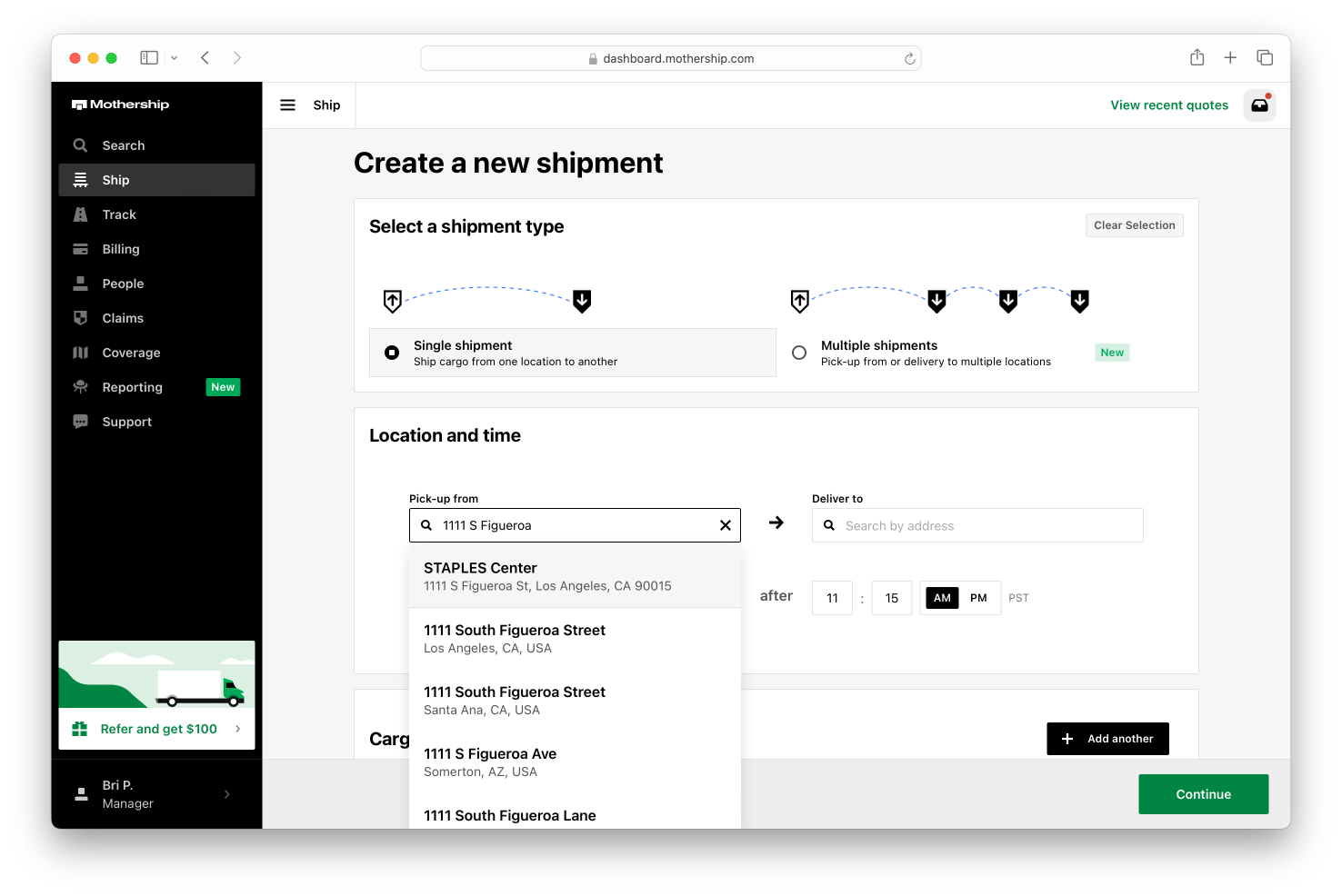
Select cargo type
Choose the type of cargo (pallets, crates, boxes, etc.) and input their dimensions.
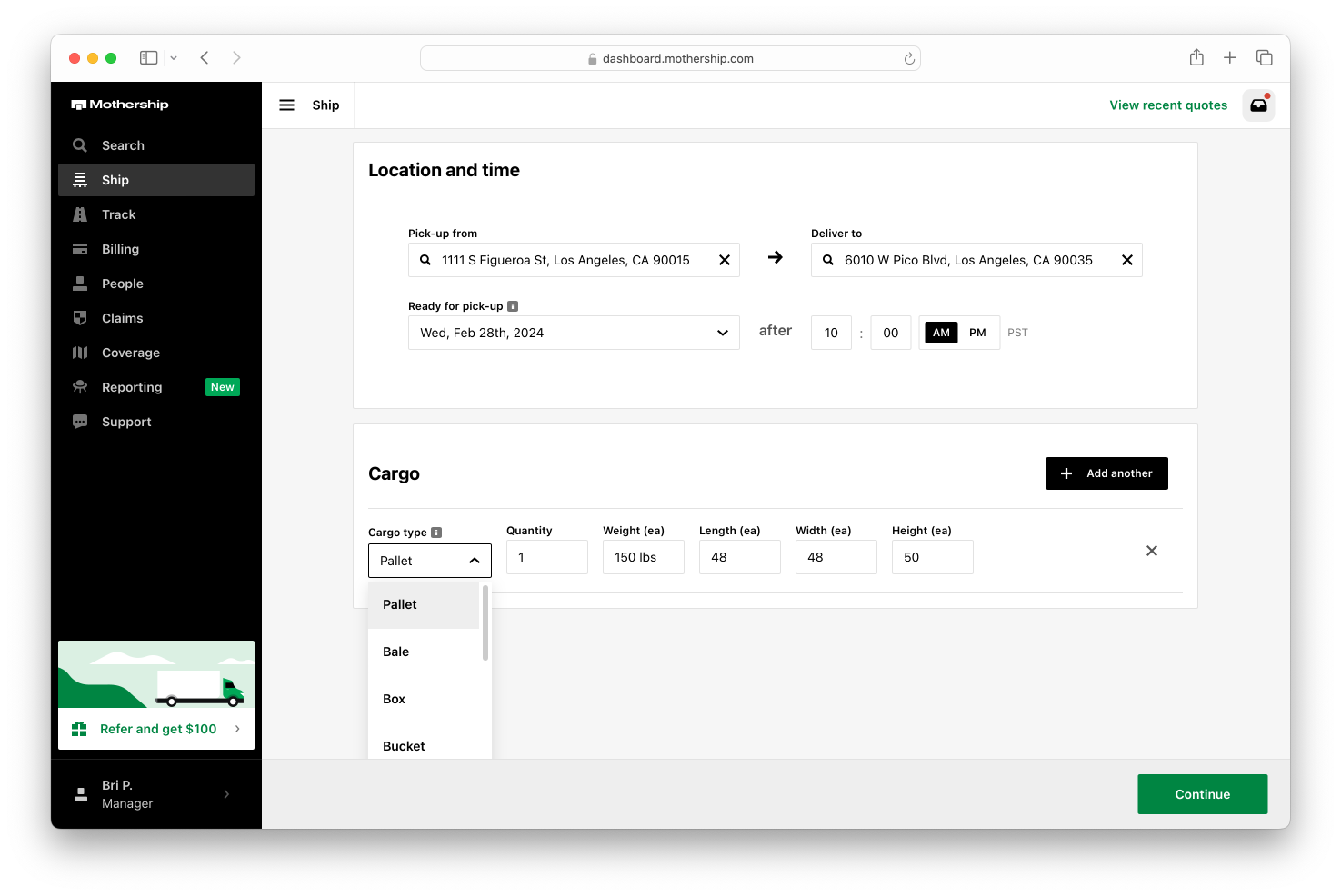
Understanding "Quantity" and "Piece count"
When you select a cargo type, two fields describe how much you're shipping — and they mean different things.
Quantity is the number of handling units of that cargo type: the separate pieces the carrier picks up, counts, and moves. Shipping 3 pallets? Enter 3. Use Add another to create a separate line for each distinct cargo type, and enter weight and dimensions per unit (ea).
Piece count type and Piece count quantity (optional) describe the individual pieces that make up your freight — such as the cartons stacked on those pallets. Example: 3 pallets holding 60 boxes → Quantity 3, Piece count type "Boxes," Piece count quantity 60. Your piece count prints on the Bill of Lading (BOL) and is verified by the carrier at pickup and by your receiver at delivery, so an accurate count helps prevent hold-ups and supports any damage or loss claim.
Shipping hazardous materials (hazmat)
If your freight is regulated, check the matching box under Regulated cargo declaration (Hazmat, Alcohol (non-hazmat), or Nicotine/Tobacco). For hazmat, provide the proper shipping name, UN/NA number, hazard class/division, and packing group; ship on a hazmat-compliant BOL with a 24-hour emergency-response phone number; and include the current Safety Data Sheet (SDS). A hazmat accessorial fee applies, and not every carrier or lane accepts every hazard class — so declare hazmat up front, every time.
Add additional details
Provide details such as business hours, contact information for both the pick-up and delivery consignees. Mothership will use this information to calculate your instant quote.
💡Tip: Ensure that your cargo description is detailed.
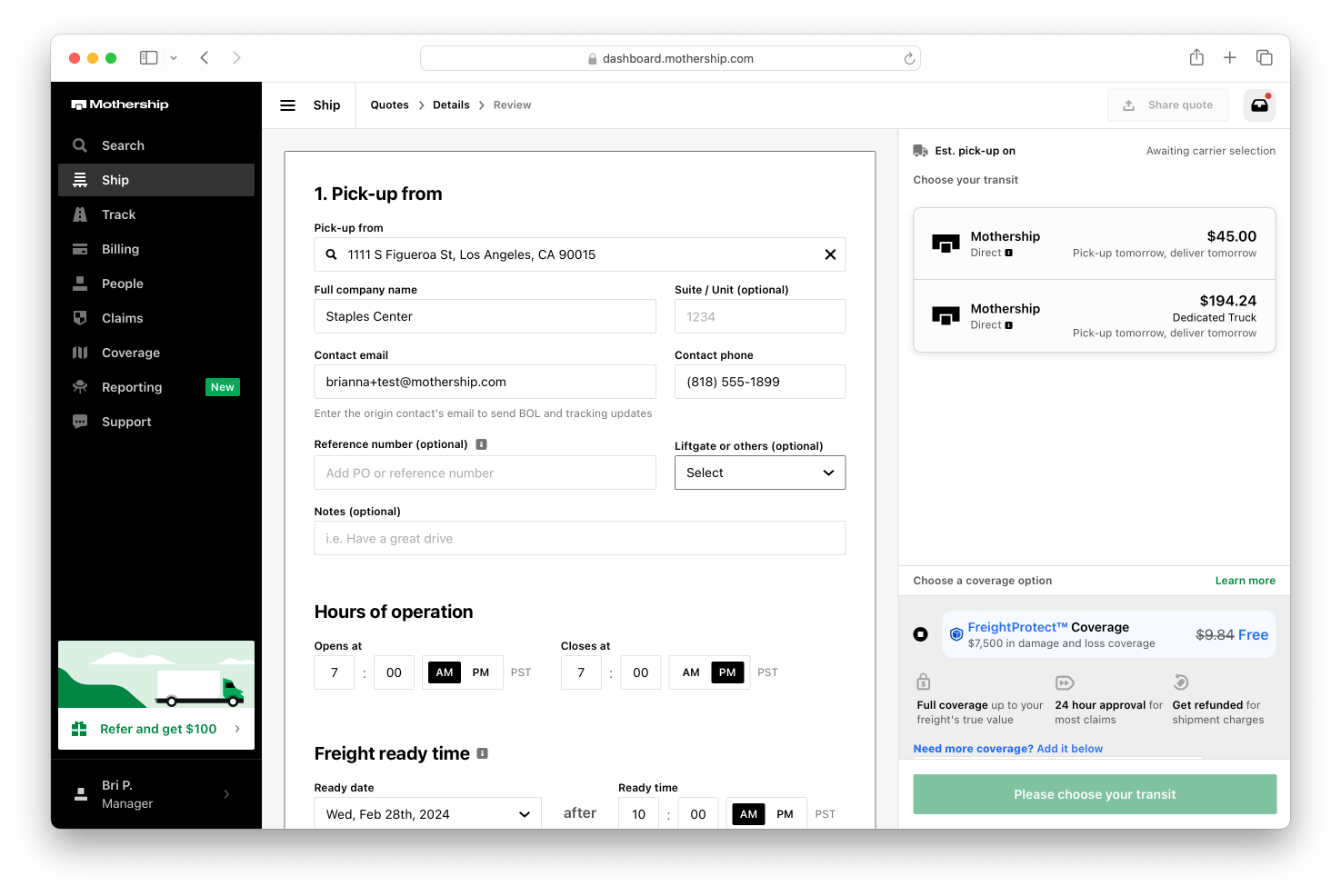
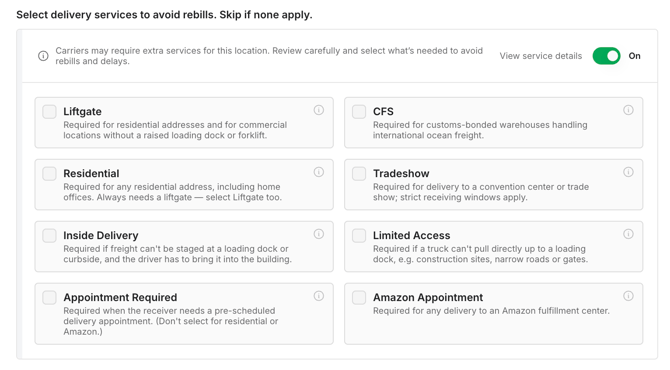
Be sure to select the correct accessorials
Be sure to select liftgate service if required ($5 each for pickup/delivery). Selecting the correct accessorials helps ensure a smooth delivery process and mitigates your chances of receiving a rebill.
Choose your service option
You will be presented with multiple options. Select the quote that best fits your speed and price requirements.
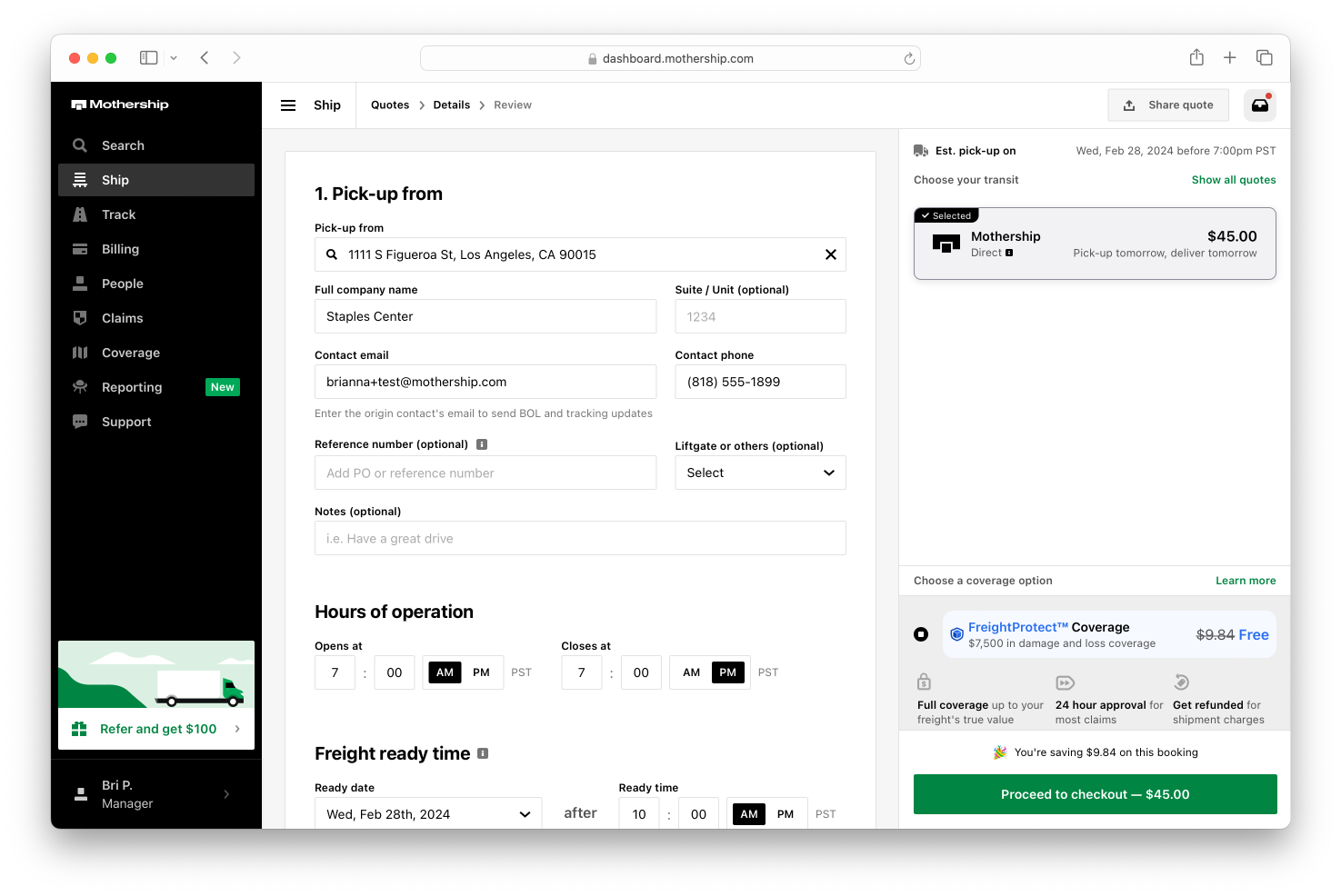
Review your transaction breakdown
You’ll have the opportunity to review all of the charges for your shipment before checking out. If everything looks good, click “Book now.”
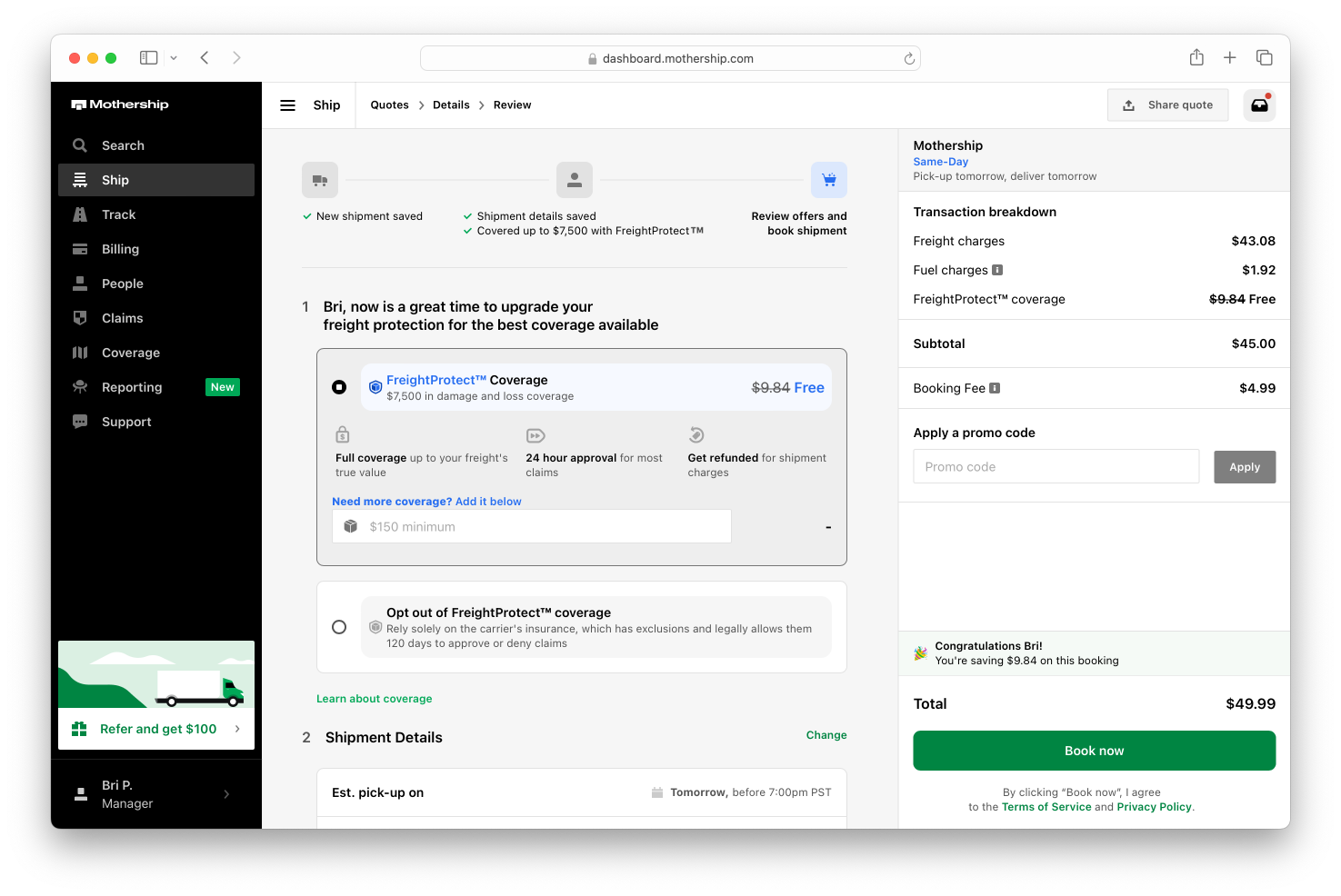
View recent quotes
Need to reference a quote you created recently?
1. Click Recent quotes in the left sidebar menu.
2. Select any quote from the list to review its details, share it, or continue with booking.
Quotes stay in this list for 28 days.
💡 Tip: Your most recent quotes are always present in the sidebar, making it easy to revisit pricing and ship without re-entering shipment details.
Find a quote faster
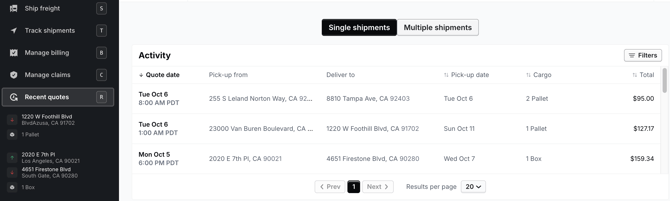
In the Single shipments list, you can sort and filter your quotes to find the one you need.
- Sort: Click Quote date, Pick-up date, Cargo, or Total to sort by that column. Click again to reverse the order.
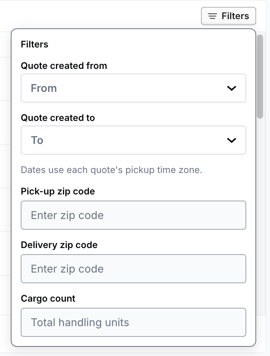
- Filter: Click Filters to narrow the list by quote date range, pick-up ZIP code, delivery ZIP code, or cargo count.
- Results per page: Show 20, 50, 100, or 200 quotes at a time.
Your sort and filters stay in place when you open a quote and go back to the list.
Troubleshooting “No Rates Found”
If you encounter a "no rates found" error, check for typos in the freight dimensions, weight, or pallet count. For persistent issues, contact the Mothership support team via the Dashboard's “Support” tab.
Tips for avoiding quoting issues
-
Double-check shipping and receiving addresses for accuracy.
-
Ensure suite/unit numbers are formatted correctly or removed from the primary address field (a dedicated field is provided for these details).
-
If address issues persist, try searching by the business name only.
Understanding "Quantity" and "Piece count"
When you select a cargo type, two fields describe how much you're shipping — and they mean different things. Quantity is the number of handling units of that cargo type (the separate pieces the carrier picks up, counts, and moves): shipping 3 pallets? Enter 3. Use Add another for each distinct cargo type, and enter weight and dimensions per unit (ea).
Piece count type and Piece count quantity (optional) describe the individual pieces that make up your freight — e.g. the cartons on those pallets (3 pallets holding 60 boxes → Quantity 3, Piece count type "Boxes," Piece count quantity 60). Your piece count prints on the Bill of Lading and is verified at pickup and delivery.
If your freight is regulated, check the matching box under Regulated cargo declaration (Hazmat, Alcohol (non-hazmat), or Nicotine/Tobacco). For hazmat, provide the proper shipping name, UN/NA number, hazard class/division, and packing group; ship on a hazmat-compliant BOL with a 24-hour emergency-response number; and include the current Safety Data Sheet (SDS).
FAQ
How long do quotes stay in Recent quotes?
28 days from the day you create them.
How do I find a quote by ZIP code?
Click Filters and enter a pick-up or delivery ZIP code. You can type just the first few digits to match every ZIP that starts with them.
Can I sort quotes by when I created them?
Yes. Click Quote date to sort. Each quote shows the date and time it was created, in the pick-up location's time zone.
What does the cargo count filter search for?
The total number of handling units in a quote. For example, 2 pallets and 1 crate count as 3. Enter a whole number.
Why does my list say "No quotes found"?
No quotes match your current filters. Clear your filters to see your full list again.
Do sorting and filters work for multiple shipments?
Sorting and filters are available on the Single shipments list.